Please follow the below steps to add your Secure Display Station (SDS) to PERCEPT Cloud.
• You’ll need a computer that can access both the SDS web interface and PERCEPT Cloud.
• You’ll need to ensure the SDS has an active internet connection to communicate with PERCEPT Cloud services.
• Ensure that any firewall is configured to allow the SDS to reach PERCEPT Cloud. Refer to Annex 1 for requirements.
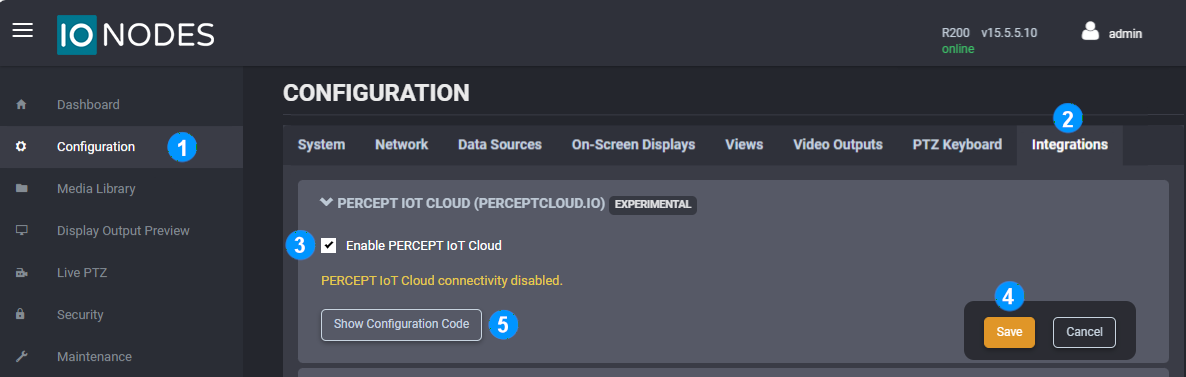
1. Log into the SDS web interface and open the Configuration page
2. Select the Integrations tab
3. Check the Enable PERCEPT IoT Cloud box
4. Save this configuration change
5. Click on Show Configuration Code
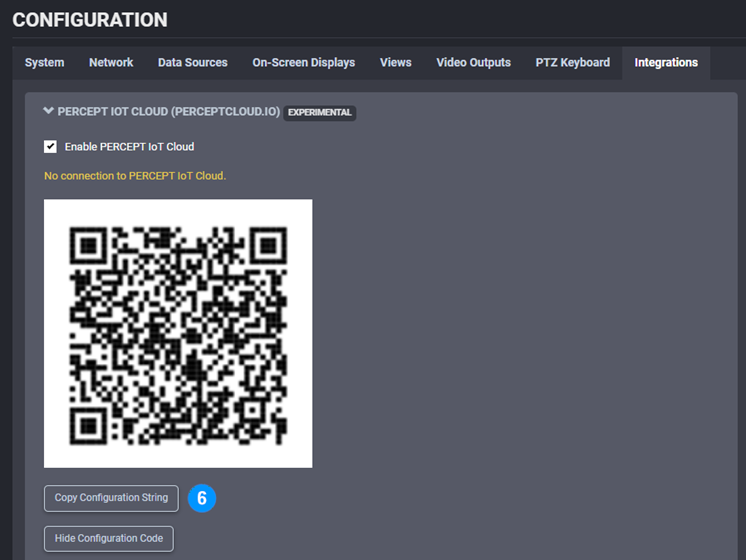
6. Click on Copy Configuration String
Log into PERCEPT Cloud. If you do not have a PERCEPT Cloud account, create one at perceptcloud.io before proceeding with the steps.
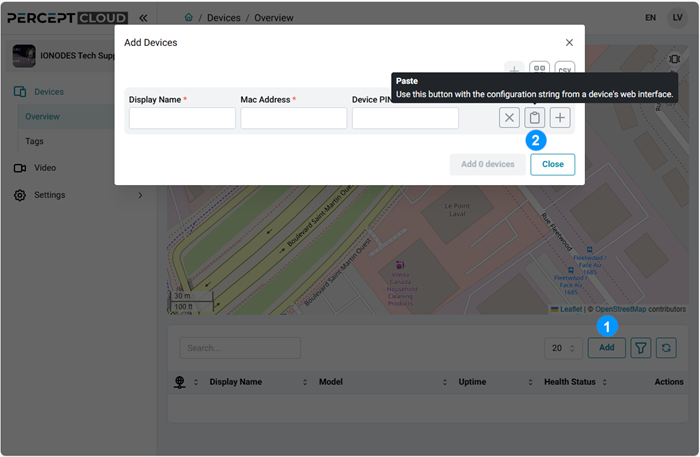
1. In your Organization’s Devices Overview, click Add.
2. In the Add Devices dialog, paste the configuration string that you copied from the SDS’ web interface.
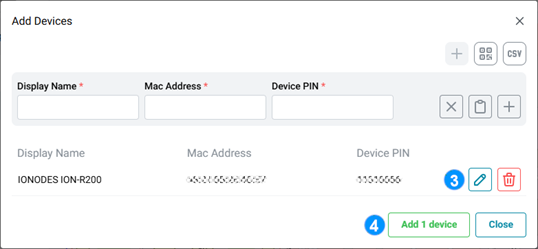
3. You can edit the auto-generated Display Name using the edit icon to provide a more meaningful name for the device.
4. Repeat steps 1 to 3 if you have more than one SDS to add in PERCEPT Cloud. Click on Add device once you have entered all your devices.
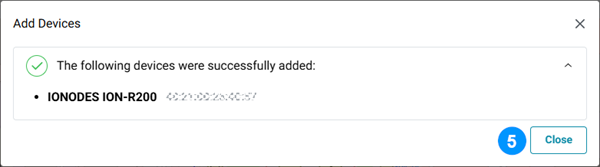
5. A confirmation dialog will indicate that the SDS have been successfully added. You may Close this dialog.
6. Note that the SDS may take a few minutes to complete their initial connection to PERCEPT Cloud before you can interact with them.
The following network ports and URLs must be allowed by your network for the SDS to be able to communicate with PERCEPT Cloud. Although most networks will allow outbound connections by default, some may require special configuration, contact your IT department if you are unsure.
| Protocol Ports | Usage |
|---|---|
| UDP / 53 | DNS queries |
| UDP / 123 | Time synchronization |
| TCP / 80 | Microsoft Windows NCSI test |
| TCP / 443 | Encrypted TLS traffic |
| Domain name | Usage |
|---|---|
| msftconnecttest.com | Microsoft Windows NCSI test |
| dns.msftncsi.com | Microsoft Windows NCSI test |
| global.azure-devices-provisioning.net | Cloud Device management |
| global-device-provisioning.api.east-us.perceptcloud.net | Cloud Device management |
| prod-east-us-iot-hub.azure-devices.net | Cloud Device management |
| perceptprodeastus.blob.core.windows.net | Cloud Maintenance operations |
| firmwaresdeveastus.blob.core.windows.net | Cloud Maintenance operations |
| *.argotunnel | Cloud Remote Access |
Access knowledge base articles and create support tickets through our online support portal.
Get SupportReach out to our sales team to learn more about our products and get your projects started.
Contact usSubscribe to our newsletters to receive the latest news on product enhancements, software updates, technical articles, company events and more.
General Newsletter OEM Products Newsletter

 PERCEPT Body Cameras
 Secure Display Stations
 PERCEPT Gateway Solutions
 PERCEPT Cloud
 Onvif HDMI Video Encoders
 IP Video Encoder Module Solutions for OEM